
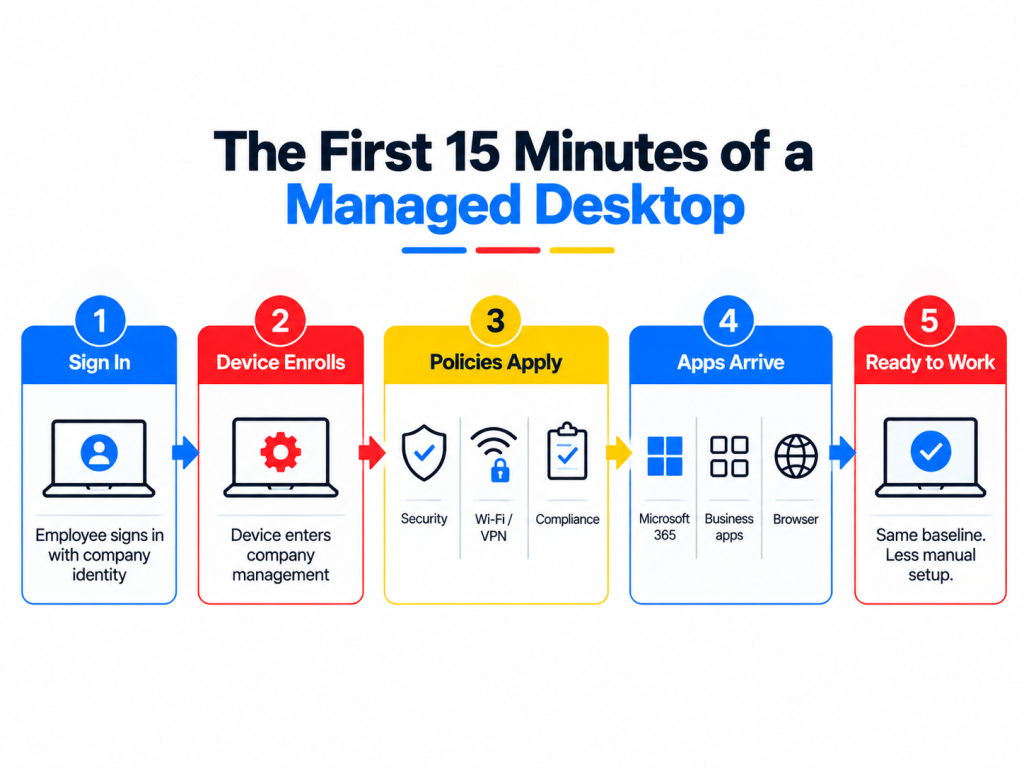
A new employee starts at 9:00 a.m. Their laptop turns on, which is a fairly low bar for success.
The better test is what happens next. Can they sign in with their company account? Are Microsoft 365 and the applications for their role already available? Is the device receiving the correct security policies? Can they reach the company resources they need without spending their first morning on a support call?
The same test applies months later. The employee should still have the right applications, current updates, appropriate access, and a device configuration that IT can see and support remotely.
That is the territory covered by managed desktop services.
Managed desktop work sits close to the employee because the desktop is where most technology decisions eventually become visible. Identity policies, application deployments, security settings, operating-system updates, browser policies, and remote support all meet on the device an employee opens every morning.
The aim is simple enough: give users a predictable working environment while giving IT enough control to manage that environment at scale.
The Desktop Has Become an IT Service Boundary
A decade ago, desktop administration could revolve heavily around office PCs joined to the same network. Today’s employee environment is much harder to define by location.
A member of Finance may work from headquarters on Monday, from home on Tuesday, and from a client site later in the week. Their applications may sit in Microsoft 365 and several SaaS platforms. Their identity comes from their security posture depends partly on device compliance, and the browser itself may have company policies applied.
The desktop is therefore less about the physical computer and more about the managed environment presented to the user.
Microsoft Intune reflects this model by providing centralized management for device enrollment, configuration, applications, compliance, and updates across managed devices. Microsoft’s Intune documentation describes the platform around setting up, securing, and operating an organization’s device fleet rather than managing each computer independently.
Apple uses a similar administrative model. Its device management framework for business supports remote configuration, policy delivery, software updates, compliance monitoring, and commands such as device lock or wipe through a connected management service.
This is why managed desktop services make more sense when viewed as an operating model rather than a remote helpdesk package.
The First Test Is Whether a New Employee Can Start Without IT Building the Device by Hand
Traditional desktop deployment could involve creating an image, installing applications, configuring settings, joining the computer to the company environment, and eventually handing it to the employee.
That process works. It also becomes awkward when employees are spread across cities, countries, and home offices.
Modern device provisioning moves more of that configuration into policy.
For Windows environments, Windows Autopilot can register a company device, connect it with Microsoft Entra ID and device management, apply organizational settings, and install assigned applications during provisioning. Microsoft specifically positions Autopilot around preparing devices for productive use without maintaining a separate custom operating-system image for every deployment.
Apple Business provides a comparable enrollment path. Apple’s Automated Device Enrollment guidance explains how organization-owned devices can be assigned to a device-management service and enrolled without IT having to prepare each device manually before the user receives it.
The operational benefit becomes clearer when onboarding happens frequently. IT can define what a particular user group needs once, then apply that configuration consistently instead of reconstructing the same desktop from memory every time someone joins.
That makes the first morning less dependent on who happened to prepare the computer.
Configuration Drift Is the Quiet Desktop Problem
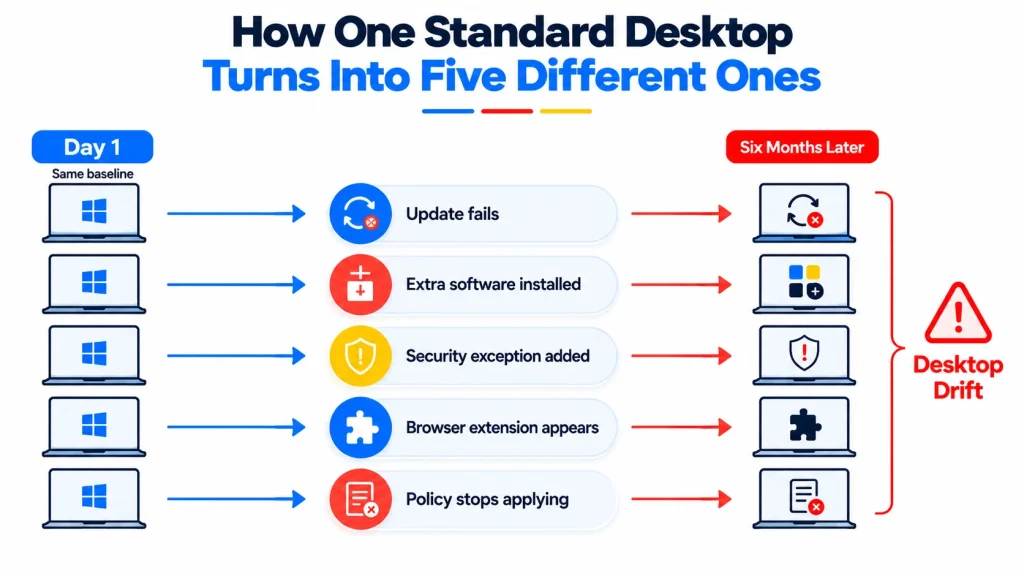
Two computers can begin with the same configuration and look completely different a year later.
One employee receives a temporary application for a project. Another changes a local setting while troubleshooting. A security exclusion is created and forgotten. An update succeeds on most devices but repeatedly fails on a handful. Someone installs a browser extension that nobody else in the company uses.
None of these changes looks dramatic in isolation.
The result is desktop drift: a device estate where employees technically use the same company systems but their actual working environments behave differently.
That makes support slower. An engineer fixing a problem can no longer assume that the affected machine follows the same baseline as another device in the department.
Centralized configuration gives IT a way to define the expected state and identify devices that have moved away from it. The CIS Controls v8.1 place asset inventory, software inventory, and secure configuration near the start of their prioritized controls. CIS specifically recommends knowing which enterprise devices and software are present and maintaining secure configurations for both.
Managed desktops turn that guidance into everyday operations. IT can see which devices exist, which policies they receive, which software is present, and where exceptions need attention.
Application Management Is Where Desktop Consistency Becomes Visible to Users
Employees rarely care how a desktop-management platform is configured. They care whether the software they need is available.
That makes application delivery one of the most visible parts of desktop management.
A Sales employee may need Microsoft 365, CRM tools, a browser configured with company settings, and perhaps a specific communication application. Finance needs a different set. Developers may need software that would be unnecessary, or inappropriate, for most other users.
Application assignment should therefore follow user or device groups rather than turning every new software request into a separate manual installation.
Microsoft Intune supports assigning managed Windows applications to user and device groups, including line-of-business and packaged applications. Microsoft’s Windows application deployment guidance describes centralized application assignment across managed Windows endpoints.
Software visibility matters just as much as installation. The CIS software inventory control recommends keeping an inventory of installed operating systems and applications so unsupported, unauthorized, or unmanaged software can be identified.
That becomes particularly useful when a vulnerability affects a specific application version. IT should be able to identify the affected population instead of asking employees whether they happen to have the software installed.
The Browser Is Part of the Managed Desktop Now
The browser used to be treated almost like a utility.
SaaS changed that.
Employees may now spend most of the working day inside browser-based applications, which means extensions, authentication behavior, stored credentials, browser versions, and browser policies can affect both security and productivity.
Updates Need a Rollout Plan, Not a Calendar Reminder
Operating-system updates are unavoidable. Their timing still needs management.
Deploy everything simultaneously and one bad interaction can affect the full user population. Delay updates indefinitely and security and reliability issues accumulate.
Windows update rings provide a middle ground.
Microsoft Intune’s Windows update-ring policies can control deferral periods, deadlines, restart behavior, active hours, and user notifications. Different groups can receive different rollout settings, which allows organizations to use pilot and broader deployment groups rather than treating every desktop identically.
The same management plane can handle feature, quality, and driver-update policies. Microsoft currently uses Windows Autopatch to orchestrate several of these managed update workflows for eligible environments.
The human side matters here as well.
A technically successful update that forces a restart during a client presentation is still a poor desktop experience. Good update management balances deployment speed with predictable user disruption.
Security Works Better When the Desktop Can Prove Its State
The employee’s identity is only one part of an access decision.
The state of the device can matter too.
A company may want Microsoft 365 available only from devices that meet defined requirements. That could include operating-system version, security configuration, encryption, or other compliance conditions depending on the environment.
Microsoft Intune compliance policies allow organizations to evaluate managed devices against configured rules. Those compliance results can then be used with Microsoft Entra Conditional Access to permit or restrict access to company services. Microsoft’s device-compliance documentation describes how device state can feed into access decisions.
This turns desktop management into part of access security.
The CIS Controls make a related point from another direction: organizations need an accurate view of enterprise assets so unmanaged or unauthorized devices can be identified and addressed.
A company should know which endpoints are accessing its environment and whether those endpoints follow the expected baseline.
A Windows-Only Desktop Strategy Is Not Enough for Every Business
Many organizations still run primarily on Windows. Others have a mixed environment that includes Macs, Chrome browsers, shared machines, remote laptops, or specialist devices.
That mixture changes how desktop management should be designed.
Apple’s current Platform Deployment guide covers centralized deployment and management of macOS and other Apple platforms using Apple Business and a connected device-management service. Google provides enterprise management for Chrome browsers across Windows, Mac, and Linux as well as ChromeOS devices.
The policies do not need to be identical across operating systems. The outcomes should be consistent.
IT should know which devices belong to the environment, which applications and policies are expected, whether the device meets the organization’s requirements, and who supports it when something goes wrong.
Trying to force every platform into an identical technical configuration usually creates unnecessary friction. Managing them against common business and security requirements works better.
Remote Support Is Better When the Technician Already Knows the Device
Remote support becomes frustrating when troubleshooting begins with discovery.
Which operating system is installed? Did the update run? Which security policy applies? Is the device managed? Which version of the application is present? Has the user already restarted?
A managed desktop environment can give the support team much of that context before the first troubleshooting step.
This changes the conversation with the employee. The technician can start from the device’s known state rather than asking the employee to reconstruct it.
The same visibility helps with repeated incidents. If five devices with the same application version begin experiencing the same error after an update, the support team has a pattern to investigate. If one machine has a different configuration from the other four, that difference becomes useful evidence.
This is where desktop management and helpdesk support should meet. The device record gives the helpdesk context, and support activity gives desktop administrators information about where policies or applications are causing friction.
Managed Desktop Services and Helpdesk Support Are Related, but They Solve Different Problems
A helpdesk responds to people.
Desktop management maintains the environment those people are using.
The services overlap during troubleshooting, but their normal work looks different.
| Helpdesk work | Managed desktop work |
| User cannot open an application | Maintain application deployment and configuration |
| Employee reports an update problem | Track update deployment and failed devices |
| User needs access assistance | Maintain device compliance and desktop policies |
| Browser behaves incorrectly | Manage browser versions, settings, and extensions |
| Employee receives a new managed device | Apply enrollment, applications, and configuration |
| User has a recurring desktop issue | Compare device state with the standard baseline |
Neither function is particularly effective when isolated from the other.
Support teams without device visibility spend more time gathering information. Device-management teams without support feedback can have technically compliant desktops that frustrate the people using them every day.
Managed desktop services connect those two perspectives.
Desktop Management Should Measure the Employee Experience Too
A dashboard can show 98% policy compliance while users still complain about their computers every morning.
Both pieces of information matter.
Technical reporting should cover areas such as update status, policy deployment, application failures, endpoint compliance, security findings, and unmanaged devices. Support data adds another layer: repeated issues, affected departments, login problems, application launch failures, and recurring requests.
Together, those signals can expose patterns that a compliance report alone will miss.
Consider an application that installs successfully on every device but takes several minutes to launch for one department. The deployment metric looks perfect. The employee experience does not.
A sensible managed-desktop review therefore looks at both technical state and recurring user friction.
What Should a Managed Desktop Service Actually Own?
The answer depends on the company, but vague scope creates poor support.
A service agreement should define which operating systems and user groups are covered, how devices are enrolled, which policies are managed, how applications are deployed, how updates are handled, and what happens when a device falls outside the expected configuration.
A practical scope may include:
- Device enrollment and configuration
- Windows and macOS policy management
- Application deployment and software visibility
- Operating-system and driver update management
- Browser policy administration
- Endpoint compliance monitoring
- Security configuration
- User desktop support and escalation
- Remote troubleshooting
- Reporting on policy, update, and compliance status
Physical-device procurement, warranties, replacement logistics, and other hardware services are separate questions and should be scoped separately rather than assumed to be part of desktop management.
That distinction keeps expectations clear.
When Managed Desktop Services Become More Useful
The strongest trigger is rarely the number of computers alone.
Complexity matters more.
A 50-person company where everyone sits in one office and uses the same three applications may have a straightforward desktop environment. Another 50-person company could have remote users in several countries, Windows and Mac devices, dozens of SaaS products, privileged users, contractors, and strict compliance requirements.
Those two organizations need very different levels of desktop administration.
Managed desktop services become especially useful when configuration varies between employees, onboarding requires too much manual work, update status is difficult to track, support engineers lack device context, or IT cannot confidently identify which endpoints meet company requirements.
Another signal is policy drift. If the answer to “Are all Finance laptops configured the same way?” starts with “mostly,” the environment deserves a closer look.
Where Folio3 MSP Fits Into Desktop Management
Folio3’s current Managed IT Services portfolio covers users and devices through Managed IT Support, Cybersecurity Management, and Identity & Access Management, alongside broader network, hosted-environment, recovery, and strategy services. Folio3 Managed IT Services currently describes its model as proactive management across users, devices, security, and infrastructure.
For a managed desktop environment, the most relevant areas are Managed IT Support, endpoint security, identity controls, and ongoing monitoring.
Managed IT Support
Folio3’s Managed IT Support includes 24/7 proactive helpdesk coverage, automated patch management, monitoring, and vendor coordination.
For desktop operations, this connects employee support with the ongoing state of the managed environment. A recurring application issue can be considered alongside update history and device configuration rather than being treated as a fresh problem every time.
Cybersecurity Management
Folio3’s current cybersecurity offering includes endpoint protection, firewall and VPN management, SOC monitoring, incident response, access controls, and compliance-oriented support.
Endpoint security is particularly relevant to managed desktops because the employee device sits directly between company identities, business applications, email, SaaS platforms, and external networks.
Identity & Access Management
Folio3 currently lists MFA, SSO, privileged access, identity lifecycle management, and identity governance within its managed IT capabilities.
Those services connect naturally with desktop management. Device state and user identity increasingly work together when determining whether someone can access company resources.
Ongoing Reporting and Support
Desktop management should leave IT with a clear view of what needs attention rather than another collection of dashboards. Folio3’s MSP model includes monitoring, support, maintenance, reporting, and strategic review across the wider IT environment.
That gives desktop issues somewhere to go when they reveal a larger identity, security, application, or infrastructure problem.
A Good Desktop Should Be Remarkably Uneventful
The employee should not have to think about most of this.
They should sign in, find the applications required for their role, receive updates at sensible times, reach company resources securely, and know where to go when something genuinely breaks.
Behind that ordinary workday is a surprisingly large amount of administration.
Managed desktop services bring device enrollment, configuration, applications, updates, security policies, compliance, browser management, and user support into a repeatable operating model. That consistency becomes more valuable as employees spread across offices, homes, and operating systems.
The desktop is one of the few places where nearly every IT decision eventually meets the employee.
Managing it well shows.
Frequently Asked Questions
Yes, provided the management platform and service scope support both operating systems. Microsoft Intune supports several device platforms, while Apple’s management framework allows macOS devices to receive remote configurations, software updates, compliance settings, and administrative commands.
No. Standardization should define the common baseline while applications can still be assigned according to role, department, or device requirement. Microsoft Intune, for example, supports application assignments to different user and device groups.
Yes. Modern device-management platforms are designed to manage internet-connected endpoints remotely. Windows Autopilot and Apple’s automated enrollment models can also support company-managed device setup without IT manually preparing every endpoint in the office.
The response depends on the policies the organization has configured. Intune can mark devices compliant or noncompliant according to defined requirements, and that status can be used by Microsoft Entra Conditional Access when deciding whether the device can access organizational resources.
It often should be for organizations that rely heavily on SaaS. Chrome Enterprise supports central policy and reporting for managed browsers across Windows, Mac, Linux, and ChromeOS environments, including visibility into versions and installed extensions.
A staged model gives IT more control than updating every device simultaneously. Microsoft Intune update rings can define deferrals, deadlines, restart behavior, and deployment settings for different device groups.
Look closely at supported operating systems, device enrollment, application deployment, patching, policy management, endpoint security, compliance reporting, remote support, escalation, browser management, and responsibility boundaries. The scope should also state clearly which tasks remain with your internal team.