
The video call starts in two minutes, but the microphone has disappeared. Outlook has stopped sending messages. A shared folder suddenly says you do not have permission.
These problems feel unrelated. From an IT support perspective, they often come down to a small group of causes: lost connectivity, expired credentials, failed synchronization, outdated software, incorrect permissions, or a service outage.
Many common IT issues can be resolved safely without changing system-wide settings. The trick is knowing what to check first and when to stop troubleshooting.
This guide covers ten problems that appear regularly in business environments, along with practical fixes that employees can try before raising a support ticket.
Check These Four Things Before Troubleshooting
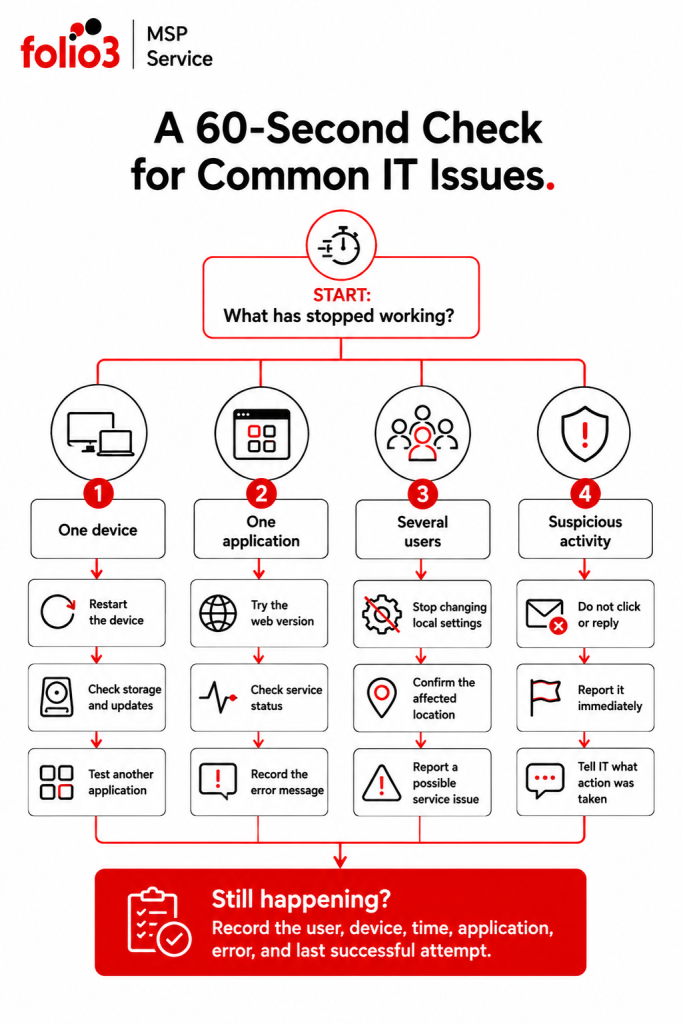
A good technician rarely begins by clicking through random settings. Start by narrowing the problem.
Ask yourself:
- Is the issue affecting one person or several people?
- Is one application affected, or is everything failing?
- Does the problem happen on another network or device?
- What changed immediately before the issue appeared?
These questions quickly separate a local problem from a wider outage.
For example, if one laptop cannot reach a website but a phone on the same Wi-Fi can, the problem is probably on the laptop. If nobody in the office can access email, restarting one employee’s Outlook will achieve very little.
Take a screenshot of any error message before closing it. The exact wording is usually more useful than “it stopped working.”
1. Your Computer or Applications Feel Slow
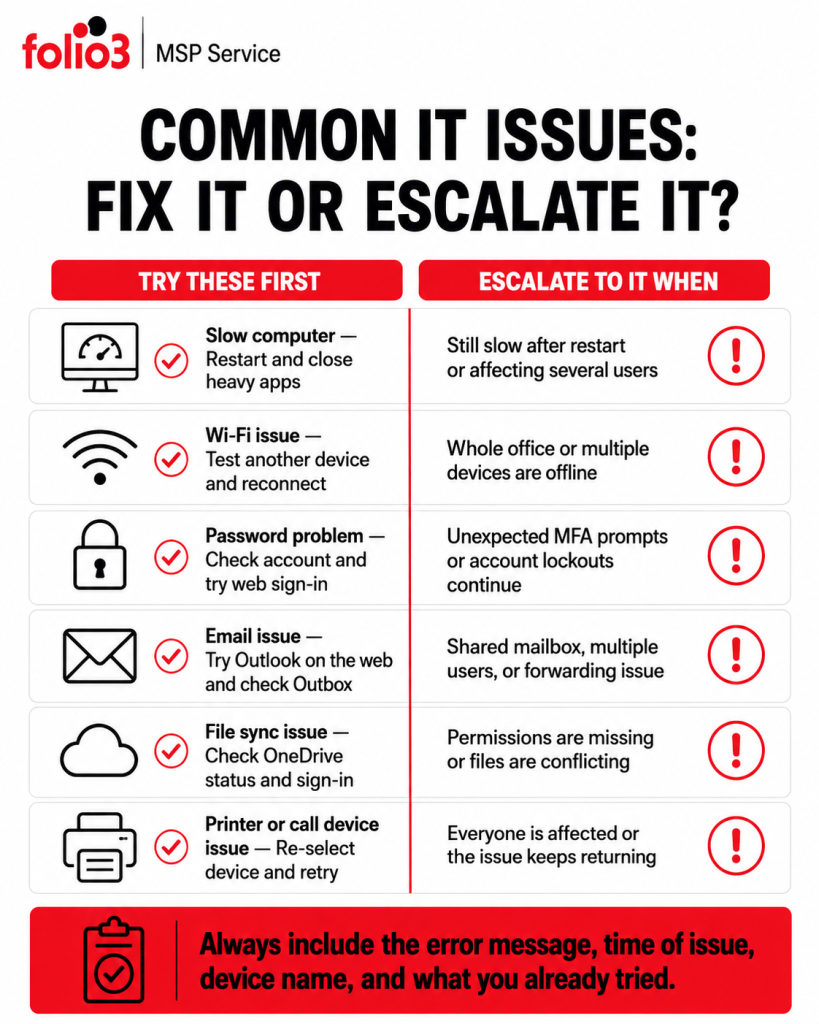
A slow computer is one of the most reported common IT issues, but “slow” can mean several things. The whole device may be unresponsive, one application may be struggling, or files may be taking longer to open because the connection is poor.
- What you can do:
Start with the simplest reset. Save your work and restart the computer properly. Closing the laptop lid or signing out is not the same as restarting it.
After the restart, open Task Manager by pressing Ctrl + Shift + Esc. Check whether one application is using an unusually high amount of processor, memory, or disk capacity. Close only applications you recognize and no longer need.
Storage is another frequent cause. Windows may struggle to install updates or create temporary files when the system drive is nearly full. Open Settings > System > Storage and review temporary files and cleanup recommendations. Do not delete business folders simply because they are large. Microsoft’s storage guidance explains the built-in cleanup options.
Raise the issue with IT when the slowdown returns after each restart, affects several employees, or begins after a company-wide application update.
2. Wi-Fi Is Connected, but the Internet Does Not Work
A Wi-Fi icon only confirms that the device is connected to a wireless network. It does not prove that the network has working internet access.
- What you can do:
Try opening two unrelated websites. If one opens and the other does not, the problem may belong to that website rather than your connection.
Next, test another device on the same Wi-Fi. If every device is offline, avoid repeatedly changing settings on your computer. The router, internet circuit, firewall, or service provider may be involved.
When only one Windows device is affected:
- Turn Wi-Fi off, wait ten seconds, and turn it back on.
- Confirm that Airplane mode is disabled.
- Forget the network and reconnect using the correct password.
- Restart the computer.
- Run the Network and Internet troubleshooter through the Windows Get Help application.
Microsoft recommends network reset as a later step because it removes and reinstalls network adapters and can affect VPN clients or virtual networking software. Do not use it casually on a managed business device. Microsoft’s Wi-Fi troubleshooting guide covers the safer checks first.
If the connection drops at the same desk every day, record the location and time. That points to wireless coverage or interference rather than a random laptop problem.
3. Your Password or MFA Code Is Not Working
Sign-in problems become confusing because the same account may be used across email, Microsoft 365, SaaS applications, VPN access, and the computer itself.
- What you can do:
First, confirm which account the application is requesting. A personal Microsoft account and a work account can use similar email addresses but follow different recovery processes.
Check Caps Lock and keyboard language before resetting anything. Then try signing in through the service’s web portal. If the website accepts the credentials but the desktop application does not, the application may be holding an old session or cached password.
Organizations using Microsoft Entra ID may allow employees to reset a work password through self-service password reset. This only works when the administrator has enabled it and the user has already registered an approved verification method. Microsoft documents the work-account reset process here.
Do not approve an MFA request you did not initiate. Repeated unexpected prompts may mean someone else knows the password. Deny the request and report it to IT.
4. Outlook Will Not Send or Receive Email
Email problems are often blamed on Outlook before anyone checks whether the mailbox or Microsoft service is working.
- What you can do:
Open Outlook on the web first. If email works there, the mailbox is available and the problem is probably limited to the desktop application or its local profile.
For a message stuck in the Outbox, check the attachment size and confirm that Outlook is not set to Work Offline. Large attachments are better shared through OneDrive or SharePoint as links. Also check whether mailbox is full, since this can prevent new messages from being sent or received.
A delivery failure message should be read rather than deleted. It may identify an invalid address, full recipient mailbox, spam rejection, or temporary server problem.
Microsoft provides separate troubleshooters for Outlook sending and receiving problems, including profile and licensing checks. Use Microsoft’s Outlook email troubleshooting page when the basic checks do not solve it.
Contact IT quickly when several users stop receiving mail, a shared mailbox disappears, or messages appear to be forwarding somewhere unexpected.
5. OneDrive or Shared Files Are Not Syncing
File synchronization problems create a particularly messy version of common IT issues. One employee sees the latest document. Another sees yesterday’s copy. Both assume the other person overwrote the work.
- What you can do:
Start with the OneDrive icon in the taskbar. It usually shows whether synchronization is paused, the account is signed out, storage is full, or a particular file has failed.
A file may remain in “Processing changes” when it is still open, unusually large, or part of a large batch upload. Close the file and its application, then give OneDrive time to complete the upload. Microsoft also advises checking whether the user recently changed their password and needs to sign in again. See Microsoft’s guidance for OneDrive stuck on “Processing changes.”
When access is denied, do not keep moving the file between folders. Open the library in a browser and confirm that you are signed in with the correct work account. The issue may be a SharePoint permission rather than synchronization.
Avoid unlinking the entire OneDrive account as the first fix. Unsynchronized files should be identified and protected before any reset is attempted.
6. An Application Keeps Freezing or Closing
An application that fails once may have hit a temporary error. One that fails every morning at the same point has a pattern worth investigating.
- What you can do:
Save what you can. Close the application normally, then reopen it. If it refuses to close, use Task Manager to end that application only.
Check whether the same action causes the crash again. Does it happen when opening one file, connecting to one database, exporting a report, or using a particular add-in? That detail often identifies the real cause.
Try the web version of the application when one exists. If the browser version works, you have a temporary route back to work and useful evidence that the account and online service are available.
Do not uninstall a managed business application unless IT asks you to. Reinstallation can remove configuration, cached data, integrations, or licence settings that the support team needs to inspect.
7. The VPN or Remote Desktop Will Not Connect
Remote-access problems usually sit in one of three places: the local internet connection, the user’s identity, or the remote service.
- What you can do:
Check ordinary internet access first. A VPN cannot create a stable connection over an unstable home network.
Confirm that the correct VPN profile or remote computer name is selected. Then check the exact error:
- “Authentication failed” usually points toward credentials, MFA, or account permissions.
- “Server unavailable” may indicate an incorrect address, outage, firewall rule, or unavailable remote system.
- A connection that starts and immediately drops may involve session limits, device compliance, or conflicting local software.
Make sure the device’s date and time are correct. Authentication systems can reject connections when the clock is far out of sync.
Avoid repeatedly reinstalling the VPN client or changing firewall settings. Those actions can remove useful logs and make the original problem harder to trace.
If remote access is business-critical, include your location, internet provider, error message, and whether another user can connect in the support ticket.
8. The Printer Shows as Offline or Jobs Stay in the Queue
Printers have a talent for failing immediately before an important meeting.
- What you can do:
Check whether the correct printer was selected. Employees who move between offices may still be sending jobs to a printer at another location.
For a network printer, confirm that the computer is connected to the same business network or VPN required to reach it. Clear only your own failed print jobs first. A single corrupt job can hold the rest of the queue.
Windows includes a printer troubleshooter in the Get Help application. Microsoft’s recommended checks also include restarting the printer, confirming its connection, removing and reinstalling it when appropriate, and checking the print spooler. Microsoft’s printer troubleshooting guide provides the full sequence.
If every employee is affected, stop troubleshooting individual computers. The shared queue, print service, driver, network path, or printer itself needs central investigation.
9. Your Microphone, Camera, or Speakers Fail During a Call
The problem may be arising from the inside the meeting application. Teams, Zoom, browsers, and Windows may each have a different device selected.
- What you can do:
Open the application’s device settings and check the microphone, speaker, and camera names. A docking station, Bluetooth headset, monitor, and laptop can all present separate audio devices.
Run the built-in test call where available. If the microphone works in Windows but not in the meeting application, review the application’s permissions and selected input device.
For Bluetooth headsets, disconnect and reconnect them before the call begins. Headsets sometimes connect for audio output while leaving the laptop microphone selected for input.
When audio fails during an active meeting, use the phone dial-in or browser version rather than spending fifteen minutes rebuilding settings while everyone waits. Troubleshoot properly after the call.
10. You Receive a Suspicious Email or Security Alert
This is the one problem where experimenting can make the situation worse.
- What you can do:
Do not open the attachment, click the link, reply to the sender, or forward the email to colleagues. Use the organization’s reporting button or contact the security team through a separate channel.
Phishing emails often create urgency around invoices, passwords, document access, deliveries, or senior-management requests. The sender’s display name is not proof of identity.
CISA recommends recognizing and reporting phishing attempts, using strong passwords, enabling MFA, and installing software updates as basic security measures. CISA’s Secure Our World guidance covers these actions.
If you already opened the file, entered credentials, or approved an MFA request, report exactly what happened. Do it immediately. Disconnecting the device from the network may also be appropriate, but follow your organization’s incident instructions rather than deleting files or clearing browser history.
When Should You Stop Troubleshooting?
Basic checks are useful. Random configuration changes are not.
Stop and contact IT when:
- Several employees are affected
- A security warning or suspicious sign-in is involved
- Business data may have been deleted or exposed
- The issue involves administrator permissions
- You are being asked to disable security software
- A system works briefly and then fails again
- The proposed fix could affect other users
These cases often point beyond everyday common IT issues. They may involve identity policies, network configuration, migration services, security controls, application integrations, or an outage affecting a wider environment.
What Information Should You Include in an IT Ticket?
“Outlook is broken” leaves the support team with ten possible starting points.
A useful ticket includes:
- The affected user and device
- The application or service
- The exact error message
- The time the issue started
- Whether anyone else is affected
- What you were doing immediately before it happened
- Which troubleshooting steps have already been tried
- A screenshot, where appropriate
One good ticket can save several rounds of questions.
Avoid placing passwords, MFA codes, confidential client data, or sensitive screenshots in the ticket.
Repeated IT Problems Need a Different Fix
A one-time application crash may need a restart. A weekly crash deserves investigation.
Recurring common IT issues often expose a problem in the surrounding environment. Repeated password lockouts may be caused by an old credential stored on another device. Frequent file-sync conflicts may point to inconsistent working practices or permissions. Wi-Fi complaints limited to one part of an office may indicate a coverage problem.
Track patterns across users, locations, applications, and time. That evidence helps IT move from temporary fixes to root-cause work.
Frequently Asked Questions
Include the error message, affected application, device, time, recent changes, and troubleshooting already attempted. A screenshot helps, provided it does not expose passwords or confidential information.
Many account, application, email, file-sync, cloud, and configuration issues can be investigated through a secure remote session. Network-wide outages and some physical problems may still require local checks.
It should define coverage hours, response targets, priority levels, escalation routes, included systems, and responsibilities on both sides. Resolution times should be separated from initial response times.
Review ticket history by user, application, location, device, and error type. Repeated incidents should be moved into root-cause investigation rather than closed as separate support requests.
Use only the organization’s approved remote-support tool and confirm the technician through a known contact method. The user should be able to see or end the session unless an authorized unattended-support arrangement is already in place.